
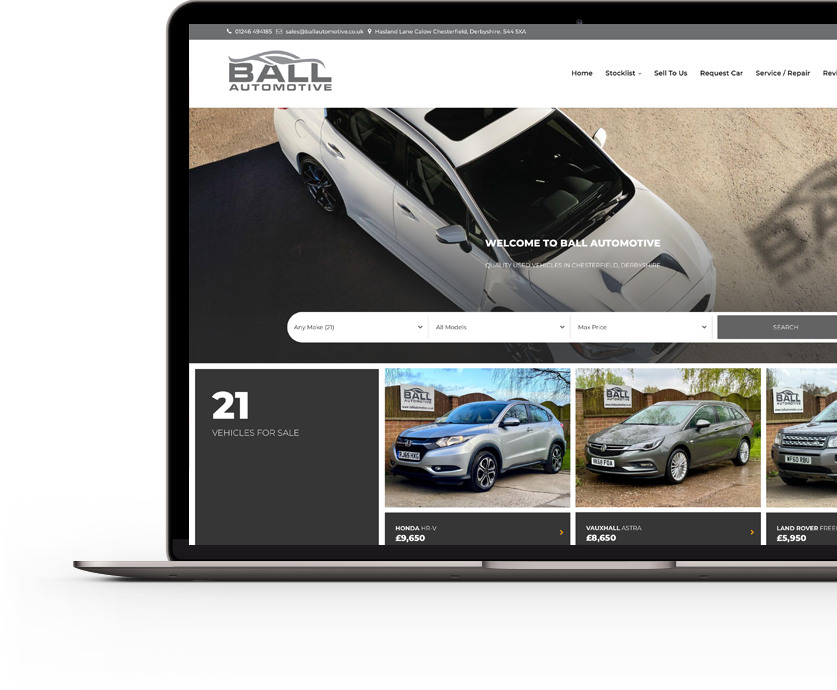

No setup fee
Responsive
Best for smaller stock levels and simple dealer websites.
£44+VAT
Per month
✓Responsive dealer website
✓VRM lookup tools
✓Telegram integration
Car Dealer 5 has developed far beyond a simple vehicle stock system.
Your dealer administration area can now bring together vehicle stock, website content, leads, diary events, workflow, valuations, Telegram services, finance integrations, advertising feeds and wider dealership administration.
We are currently developing a new guided help and walkthrough system that will provide more detailed, step-by-step assistance inside the platform.
Until that is ready, this page provides a practical overview of the main areas of Car Dealer 5 and where to begin.
Once you log in, your dashboard gives you access to the main areas of your Car Dealer 5 account.
Depending on your package and connected services, this may include:
The exact options shown will depend on the services available to your dealership.
Vehicle stock can be added manually or through connected services such as VRM vehicle data or AutoTrader Connect.
When adding a vehicle manually, the usual process is:
Depending on your package, vehicle data may be retrieved automatically from the registration number, reducing the amount of information you need to enter manually.
A Car Dealer 5 vehicle record can contain much more than the make, model and price.
Available information can include:
Vehicle images can be uploaded in groups rather than one at a time.
Once uploaded, you can usually:
Where stock is connected through AutoTrader Connect, vehicle details and images can be imported from Dealer Portal according to the connected feed configuration.
Supported packages allow video content to be connected to individual vehicle adverts.
This may include YouTube walkarounds, interior demonstrations, feature videos or remote viewing content.
The video link is added against the relevant vehicle record so that it can appear on the vehicle detail page.
A vehicle must have the correct status before it appears publicly.
Depending on the terminology used in your account, this may be shown as:
Before publishing, check that the price, mileage, description, main image and contact options are correct.
Vehicles can be reopened from the stock area whenever information needs to be changed.
You can update:
When a vehicle is sold, it can be removed from live stock or moved into a sold or archived section, depending on the options available within your package.
Your website settings area allows you to manage key dealership information.
This can include:
Keep this information accurate, as it may appear in several places across your website and customer communications.
Where page editing is available, you can manage dealership content without changing the underlying website code.
Editable pages may include:
Some pages are system pages required by the Car Dealer 5 platform. These may be editable only in certain areas or may not be removable.
Page titles and meta descriptions help search engines and potential visitors understand what each page is about.
Where controls are available, use:
Avoid repeating the same keywords unnaturally or copying the same text across several pages.
Dealers requiring additional help with website content and search visibility can ask about ProSEO.
The menu controls determine which available pages are shown to website visitors and the order in which they appear.
When managing the menu:
Good menu labels include terms such as Stock, Finance, Part Exchange, About Us and Contact.
Website enquiries can be recorded within the Car Dealer 5 leads system.
A lead can include:
Open each new lead, review the details, record the action taken and set the next step where appropriate.
Not every customer enquiry arrives through the website.
The Add Lead facility allows you to record enquiries received through:
This helps keep your customer information and follow-up activity in one place.
Diary and workflow tools help you manage what needs to happen next.
You can use them to:
The workflow area is designed to highlight customer activity that may otherwise be missed.
Selected Car Dealer 5 services can be connected to Telegram.
Depending on your package and enabled services, Telegram can be used for:
Telegram provides quick mobile access to selected functions but does not replace the main dealer administration area.
Eligible dealers can access vehicle valuations through the Car Dealer 5 platform or connected Telegram services.
Depending on the connected valuation service, available information may include:
Valuations should always be considered alongside condition, service history, preparation costs, specification and your own appraisal.
DMS-5 provides wider dealer management functionality for applicable accounts.
It can help manage:
When adding a purchased vehicle, you can record relevant purchase information and costs alongside the stock record.
CD5 Insight helps you understand how customers are interacting with your website and stock.
Depending on the available reporting, you can review:
This information can support decisions about pricing, advertising, photographs, descriptions and stock presentation.
Finance and advertising connections are configured according to the services your dealership uses.
Before requesting an integration, make sure you have:
Our team can confirm which providers are supported and what information is needed.
The Car Dealer 5 support ticket system keeps requests organised and connected to your dealer account.
When raising a ticket:
Clear information helps the support team understand and resolve requests more quickly.
The best way to become familiar with Car Dealer 5 is to explore the administration area and review the options available to your account.
However, take care when:
Where you are unsure, save a copy of the existing content or contact support before making a major change.
Car Dealer 5 is currently building a more detailed help experience for dealers.
The planned system will provide clearer guidance inside the platform, including step-by-step walkthroughs for important tasks.
This is expected to cover areas such as:
Until the new help system is available, this page will continue to provide a general overview rather than screen-by-screen instructions that may become outdated as the platform develops.
Most dealers can begin using the main stock and website controls without formal training. More advanced areas may require guidance depending on the services enabled.
Many administration functions can be accessed from a suitable mobile device, although uploading and managing large numbers of images may be easier on a larger screen.
Eligible dealers using AutoTrader Connect can have supported vehicle data and images transferred according to the connected feed setup.
Yes. Applicable pages and dealership settings can be edited through the dealer administration area.
Controls are available for supported pages and packages. Dealers requiring additional search support can ask about ProSEO.
Use the Car Dealer 5 support ticket system so your request is recorded and linked to your dealer account.
No. The walkthrough system is intended to make common tasks easier, while support will remain available for account-specific questions and technical issues.
You do not need to learn every part of Car Dealer 5 at once.
Begin with the areas you use most often:
As your dealership uses more of the platform, you can introduce additional services such as Telegram, valuations, Insight and DMS-5.
Call Car Dealer 5 on 01902 203333 or raise a support ticket if you need help with your account.










Start with a responsive website, add more tools as you grow, or choose a Symphony package with DMS included. Every package is built for car dealers and designed to keep your stock easy to manage.
Best for smaller stock levels and simple dealer websites.
For dealers wanting more site flexibility and extra tools.
A stronger platform with DMS tools included as standard.
For dealers wanting the full CD5 website and DMS platform.